
Streaming Disney+ isn’t just about 4K visuals anymore. The platform delivers audio mixes designed to transform living rooms into mini-cinemas, if the setup is right. The Disney Enhanced Home Theater Mix pulls viewers deeper into the action with spatial audio that places sounds all around the room, but many subscribers don’t realize they’re missing it. Getting that immersive experience requires more than hitting play. The right equipment, proper configuration, and a bit of troubleshooting can unlock audio quality that rivals theatrical releases, making every lightsaber clash and orchestral swell hit exactly as the sound engineers intended.
Table of Contents
ToggleKey Takeaways
- The Disney Enhanced Home Theater Mix uses Dolby Atmos object-based audio to position sounds in three-dimensional space, creating a theatrical experience that standard 5.1 surround cannot match.
- Compatible streaming devices include Apple TV 4K, Fire TV Stick 4K Max, Roku Ultra, and PlayStation 5, but built-in TV apps vary in Atmos support depending on brand and model year.
- A minimum viable setup requires a Dolby Atmos-compatible soundbar, eARC-enabled TV, and certified streaming device, with entry-level options starting around $300.
- Proper configuration is critical—enabling eARC on your TV, setting the correct audio format on your streaming device, and specifying your speaker configuration in the receiver prevents the system from defaulting to stereo or standard surround.
- Test known Atmos reference titles like Guardians of the Galaxy Vol. 2 or The Mandalorian to verify height effects are working and identify placement issues with upfiring drivers or in-ceiling speakers.
- Power-cycling your entire signal chain (receiver, TV, then streaming device) resolves most HDMI handshake and Atmos dropout issues that prevent the Disney Enhanced Home Theater Mix from activating.
What Is the Disney Enhanced Home Theater Mix?
Disney Enhanced Home Theater Mix is a Dolby Atmos-based audio track available on select Disney+ titles. Unlike traditional 5.1 or stereo mixes, it uses object-based audio to position sounds in three-dimensional space, above, beside, and behind the listener. Think of it as the difference between watching actors on a stage versus standing in the middle of the scene.
This format was developed specifically for home viewing, not just ported from theatrical releases. Disney’s sound engineers remix content to account for smaller rooms, lower ceilings, and consumer-grade equipment. The result is dialogue that stays clear even during explosions, ambient effects that wrap around the room, and bass that doesn’t muddy the mid-range.
Not every title on Disney+ gets this treatment. Marvel films, Star Wars series, Pixar releases, and flagship Disney originals typically receive enhanced mixes. Older catalog content often sticks with standard 5.1 surround. The platform displays an Atmos badge on compatible titles, but only if the playback device and audio system support it.
The mix works on both dedicated surround systems and virtualized setups like soundbars with upfiring drivers. Performance varies, an actual ceiling speaker array will always outperform psychoacoustic trickery, but even mid-range soundbars deliver noticeable improvement over stereo TV speakers.
How Disney Enhanced Home Theater Mix Differs from Standard Audio
Standard 5.1 surround assigns audio to fixed channels: front left, center, right, surround left, surround right, and a subwoofer (the .1). Every sound gets locked to a speaker. Dolby Atmos, which powers the Disney Enhanced Mix, treats sounds as objects that can move anywhere in a three-dimensional field. A starfighter flyby isn’t just panned left-to-right: it can arc overhead and fade behind the couch.
This object-based approach gives mixers far more control. In a 5.1 mix, rear speakers might carry generic “ambient” sound. With Atmos, those same speakers could relay a specific footstep behind the protagonist while overhead speakers handle rain on a rooftop. The audio renderer adjusts in real-time based on the listener’s speaker configuration, whether that’s a 5.1.2 setup (five main speakers, one sub, two height channels) or a full 7.1.4 array.
Another key difference: dynamic range. Standard TV mixes compress loud and soft passages so dialogue remains audible on built-in TV speakers. Enhanced mixes preserve wider dynamics, letting quiet moments breathe and action scenes hit harder. This can be a double-edged sword, viewers accustomed to compressed audio might find themselves riding the volume control during late-night viewing.
Dialogue handling also improves. Atmos mixes often include a dedicated height layer for voices, reducing the “buried dialogue” problem common in action-heavy 5.1 tracks. Center channel isolation gets tighter, and the mix can adapt if the system lacks a dedicated center speaker by folding that content into the left and right mains.
Setting Up Your Home Theater for Disney Enhanced Audio
Getting Disney’s enhanced audio requires more than just a Disney+ subscription. The entire signal chain, streaming device, HDMI connections, audio receiver or soundbar, and speakers, must support Dolby Atmos. One weak link and the system defaults to standard surround or stereo.
Start with the streaming device. Not all support Atmos passthrough. Confirmed compatible devices include Apple TV 4K, Fire TV Stick 4K Max, Roku Ultra, Chromecast with Google TV (4K), Xbox Series X/S, and PlayStation 5. Built-in TV apps are hit-or-miss: Samsung, LG, and Sony smart TVs from 2018 onward generally work, but budget brands often strip Atmos from the signal before it reaches external speakers.
HDMI cables matter. Use certified Ultra High Speed HDMI cables rated for 48 Gbps if running 4K HDR content with Atmos. Older “High Speed” cables (10.2 Gbps) might work for 1080p Atmos but can bottleneck 4K streams. Cable length beyond 15 feet increases the odds of signal degradation, if running longer distances, consider active or fiber-optic HDMI cables.
Connections must follow the right path. If using an AV receiver, the streaming device plugs into the receiver, which then connects to the TV via HDMI ARC or eARC (enhanced Audio Return Channel). For soundbar setups without a receiver, the streaming device connects to the TV, and the TV sends audio to the soundbar via eARC. Standard ARC often can’t handle the bandwidth Atmos requires, resulting in a lossy compressed stream. Check the TV’s HDMI port labels, only one port (usually HDMI 2 or 3) supports eARC.
Equipment Requirements and Compatibility
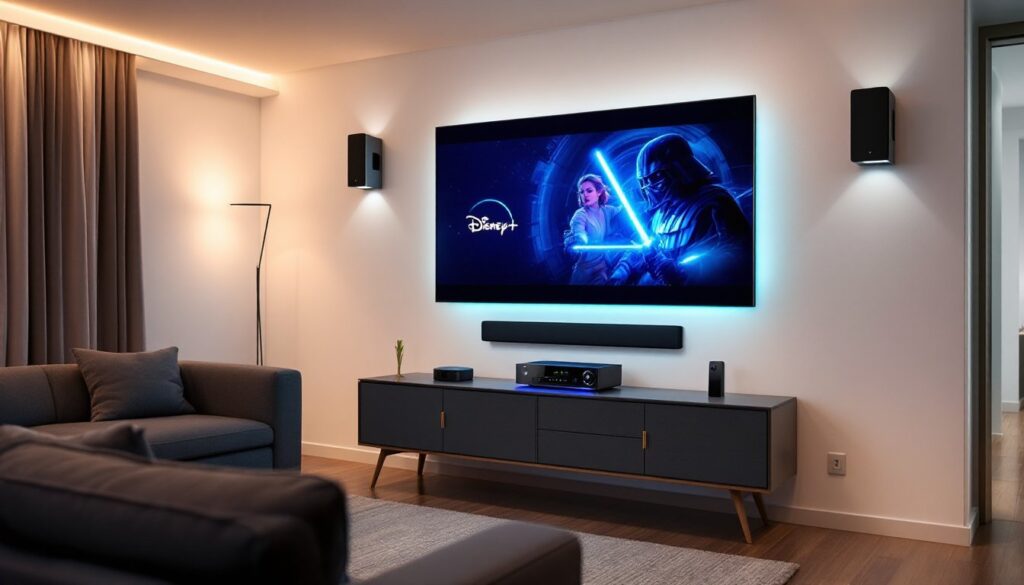
Minimum viable setup: a Dolby Atmos soundbar, streaming device, and TV with eARC. Entry-level Atmos soundbars start around $300 and use upfiring drivers to bounce sound off the ceiling, simulating height channels. Performance depends heavily on ceiling height and material, popcorn ceilings and vaulted designs scatter reflections, reducing effectiveness. Flat, hard ceilings 8-10 feet high work best.
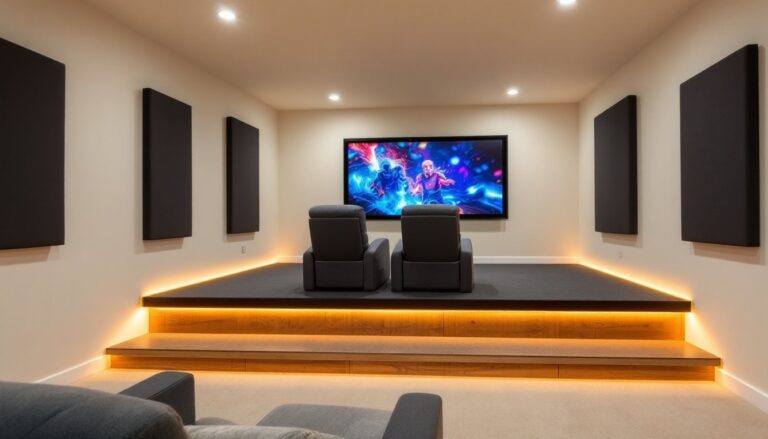
For dedicated systems, a 5.1.2 configuration is the practical starting point: five ear-level speakers, one subwoofer, and two ceiling or height speakers. In-ceiling speakers require running wire through attic or ceiling joists, doable for DIYers comfortable with drywall patching and basic electrical work, but check local codes. Some jurisdictions require low-voltage wiring permits. Upfiring Atmos modules that sit atop existing tower speakers offer a less invasive alternative, though they’re still dependent on ceiling acoustics.
AV receivers must explicitly support Atmos decoding. Look for models labeled Dolby Atmos or DTS:X on the spec sheet. Receivers from 2016 onward typically include it, but verify before assuming. Power requirements scale with speaker count, a 5.1.2 system needs a receiver rated for at least seven channels of amplification. Budget receivers sometimes list 7.1 capability but can’t power all channels simultaneously at reference volume: check the watts-per-channel spec at a consistent impedance (e.g., 100W × 7 @ 8Ω).
Most modern setups benefit from room calibration systems like Audyssey, Dirac Live, or YPAO (Yamaha). These use a microphone to measure speaker response and room acoustics, then apply EQ and delay corrections. Run calibration with the room arranged as it’ll be used, furniture, rugs, and curtains all affect sound propagation. For enhanced Dolby Atmos performance, calibration can compensate for non-ideal speaker placement or asymmetrical rooms.
Optimizing Your Audio Settings for Maximum Impact
Even with compatible hardware, settings buried in menus can prevent Atmos from activating. Start in the Disney+ app settings. Navigate to account settings (usually under profile icon) and confirm audio quality is set to “Auto” or “High.” Some devices default to “Medium” to conserve bandwidth, which can force a lower-quality mix.
On the streaming device, dig into audio output settings. Apple TV, for example, has a setting under Settings > Video and Audio > Audio Format where “Dolby Atmos” should be enabled. Fire TV devices bury it under Settings > Display & Sounds > Audio > Dolby Atmos. If the option is grayed out, the TV or connected audio device isn’t signaling Atmos capability back to the streamer.
TV settings require attention too. Enable eARC in the HDMI settings menu, it’s often labeled “Enhanced Audio Return Channel” or hidden under “HDMI Control” or “CEC Settings.” Some TVs have a separate toggle for passthrough mode or bitstream output, which sends the raw Atmos signal to the soundbar or receiver without processing it internally. Select “Bitstream” or “Passthrough,” not “PCM,” which strips object-based metadata.
Receiver or soundbar settings should match the speaker configuration. If running a 5.1.2 setup, tell the receiver exactly that, don’t leave it on “Auto” and hope it figures it out. Most receivers have a speaker configuration menu where users specify which terminals have speakers connected and whether they’re ceiling-mounted, upfiring modules, or height speakers. Getting this wrong causes the renderer to map height objects incorrectly.
Dynamic range settings deserve consideration. Many receivers and soundbars offer “Night Mode” or “Dynamic Range Compression,” which narrows the gap between whispers and explosions. This helps in apartments or late-night viewing but defeats much of the enhanced mix’s impact. For full-throttle experience, leave dynamic range wide open and adjust master volume as needed.
Subwoofer levels are taste-dependent, but Disney mixes tend to run bass-heavy. If the couch is vibrating during dialogue scenes, pull the sub level back by 2-3 dB in the receiver’s channel level menu. Conversely, if action scenes feel anemic, nudge it up slightly. Small adjustments, 1-2 dB at a time, make a significant difference. When setting up Disney+ Dolby Atmos systems, subwoofer placement and crossover settings also affect how bass integrates with the mains.
Troubleshooting Common Disney Enhanced Mix Issues
No Atmos badge on titles: First, verify the title actually supports Atmos. Search for “Dolby Atmos” on Disney+ to filter compatible content. If known Atmos titles don’t show the badge, the system isn’t detecting capability somewhere in the chain. Work backward from the TV: confirm eARC is active, the soundbar or receiver displays “Atmos” on its front panel when playing content, and the streaming device sees the audio system.
Dropouts or audio cutting out: Bandwidth or HDMI handshake issues. Streaming Atmos requires a sustained 15-25 Mbps connection. Run a speed test on the streaming device (not just the household internet). If speeds fluctuate, try wired Ethernet instead of Wi-Fi. For HDMI problems, power-cycle everything, unplug the TV, streaming device, and audio equipment for 30 seconds, then reconnect in order: receiver/soundbar first, then TV, then streaming device. This forces a fresh HDMI handshake.
Dialogue too quiet or too loud: Atmos mixes assume a properly calibrated center channel. If dialogue is buried, boost the center channel 2-3 dB in the receiver’s level menu. If it’s overpowering, pull it back. Soundbar users have fewer options, some models offer a “voice enhancement” mode that artificially lifts the center frequencies, though it can sound unnatural.
Height effects not noticeable: Ceiling reflections might not be working, or the content isn’t height-heavy. Test with a known reference title like Guardians of the Galaxy Vol. 2 or The Mandalorian, both have pronounced overhead effects. If still nothing, check speaker angles. Upfiring drivers should aim at a ceiling spot roughly equidistant between the speaker and the listening position. For in-ceiling speakers, placement 2-3 feet forward or behind the main listening area works better than directly overhead, which can create a “hole” in the soundfield.
System defaults to stereo or 5.1: The TV may not be passing through the Atmos signal. Bypass the TV entirely by connecting the streaming device directly to the receiver, then run a single HDMI from the receiver to the TV. This eliminates the TV as a potential bottleneck. If that’s not practical, ensure the TV’s firmware is up to date, manufacturers occasionally patch eARC bugs.
Audio out of sync with video: Atmos processing adds latency. Most receivers have a lip-sync delay or A/V sync setting to compensate. Increase the audio delay in 10-20 ms increments until dialogue matches mouth movements. Some TVs also have a delay setting, if both are active, they can conflict, so adjust one or the other, not both. Additional guidance on optimizing soundbar settings for Disney+ can resolve timing and configuration challenges.
Conclusion
Disney’s enhanced audio mixes deliver theater-grade sound when the setup is dialed in correctly. The difference between properly configured Atmos and default TV speakers is night and day, not just louder, but more dimensional and engaging. The upfront effort spent on cabling, settings, and calibration pays off every time a Star Destroyer rumbles overhead or a quiet character moment lands with clarity. For viewers serious about home theater, the enhanced mix is worth the troubleshooting.